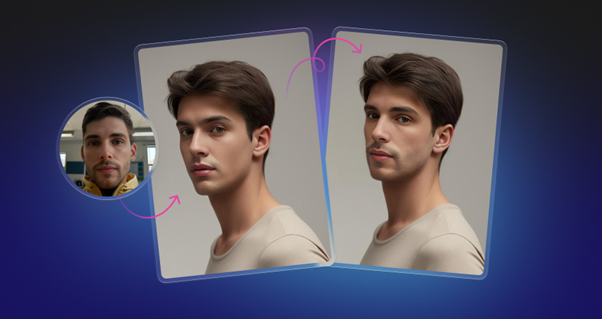

Generative media has moved past the novelty phase. It is now a production asset. Forget the viral memes or deepfake panic for a moment. For designers and content managers, the reality is boringly practical. We need tools that work.
The central question isn’t about hype. It is about utility. Can you use Face Swapper in a paid workflow without wrecking quality or crossing ethical lines?
Icons8 positions its tool as a browser-based utility, not a toy. It handles high-resolution outputs suitable for commercial design, marketing, and editorial work. Mobile apps compress images into oblivion. Manual compositing takes hours. This tool targets the gap between: high-fidelity swapping without the steep learning curve.
Fixing The “Overused Stock Model” Problem
Marketing design suffers from a specific plague: the Everywhere Model.
You find the perfect composition for a campaign. The lighting works. The environment fits the brand guidelines. Even the clothing is neutral. But that specific model has appeared in five competitor ads this month. Their face is instantly recognizable.
Designers can use Face Swapper to keep the asset while changing the identity. Start by uploading the high-quality stock image. The tool accepts JPG, PNG, and WEBP formats up to 5 MB. That covers most web-ready assets.
Don’t swap in a celebrity face. That invites legal trouble. Pick a synthetic face or a low-profile model from the Icons8 library. The AI does not simply copy and paste the new face on top of the old one. According to the documentation, the algorithm generates a bridge face “in between” the source and the target. It matches lighting, skin tone, and grain from the original scene.
You get a 1024px output that preserves the original image quality. Body language remains untouched. Composition stays perfect. But the character identity shifts enough to make the image unique to your campaign. A generic asset becomes proprietary. No new photoshoot required.
Anonymizing Subjects For Editorial Content
Privacy matters. Especially in corporate communications or sensitive HR case studies.
Imagine you have candid photos of real employees working in a factory. These images feel authentic because they are real. But using them might violate privacy policies or expose individuals to unwanted attention.
Blurring faces looks criminal. Black bars look redacted. Both ruin the aesthetic. Face Swapper offers a cleaner alternative.
Upload the candid shot. The tool detects every face in the frame. Use the multiswap feature to replace real employee identities with generated faces. This preserves the human element. Expressions, gaze direction, and diversity remain intact. The individuals are completely anonymized.
The final image retains the “vibe” of a candid shot but protects the privacy of the original subjects. Since the tool allows users to delete images permanently and clear history, this workflow aligns with strict data handling requirements.
A Routine Content Update
Picture a Tuesday morning. You manage a social media schedule. The task is simple: post a team update photo. The best shot from the recent event has great energy, but the CEO is blinking.
Open the browser. Drag the group photo into the upload area. Then, upload a separate solo headshot of the CEO where their eyes are open.
The tool processes the swap. Because the algorithm accounts for head pose, it maps the open-eyed face onto the blinking face. It even adjusts for the slight tilt in the group shot. Download the result. Post it. The entire correction takes less than two minutes. A dead photo becomes a usable asset.
Analyzing The AI Approach
Realism separates this tool from simple cut-and-paste editors.
When you perform an AI face swap using this interface, the engine analyzes the geometry of both faces. It looks at the source. It looks at the target. Then, it synthesizes a result that resembles both but fits the destination environment.
That “in-between” generation is critical. Paste a smiling face on a frowning body, and the result is nightmare fuel. This tool maps the features of the source onto the expression of the target. It handles front-facing portraits effectively. Side portraits work too, though success rates vary depending on the severity of the angle.
Comparison With Alternatives
Three main categories dominate the face manipulation market.
Manual Compositing (Photoshop): The professional standard for control. A skilled retoucher can match grain, lighting, and perspective perfectly. But it takes time. A convincing face swap in Photoshop can take 30 minutes to an hour. Icons8 automates this in seconds. You trade a small percentage of control for massive speed.
Mobile Apps (Reface, FaceApp): These are consumer toys. They prioritize fun, heavily stylized filters, and aggressive compression. Great for memes. Useless for professional design. You cannot use a low-res output for a web banner or print. Icons8 offers 1024px output, making it viable for actual production work.
Deepfake Software: Open-source Python libraries offer high control. But they require powerful GPUs, technical coding knowledge, and significant rendering time. Icons8 runs in the cloud. No local hardware resources needed.
Limitations and When To Avoid
Technology has boundaries. Don’t expect magic every time.
Occlusions: The AI struggles if anything covers part of the face. A hand on a chin, hair over an eye, or a face mask will confuse the algorithm. It often smears the new face over the obstruction. The result is a distorted, unusable image.
Extreme Angles: The landing page notes support for side portraits. The documentation is more honest: 3/4 head positions are challenging. Push the rotation too far, and the AI fails to align the jawline or ear correctly. You get a “mask-like” appearance.
Glasses and Accessories: Complex frames confuse the mapping. If the target face has thick glasses and the source face does not, the AI has to generate eyes behind the lenses. Sometimes it looks artificial.
Practical Tips For Better Results
Get more out of the tool with these specific techniques.
The Skin Beautifier Hack: Here is an undocumented trick. Upload the same photo as both the source and the target. The AI effectively remaps the face onto itself. This process smooths out skin texture and minor blemishes without altering features. It acts as an instant “beauty filter” that looks more natural than standard blurring tools.
Match the Head Shape: Physics still applies. The AI adjusts features, but it cannot change the physical size of the skull. You get better results if the source and target faces have similar shapes. Swapping a round face onto a round face works. Putting a wide jaw onto a narrow chin often results in ghosting around the edges.
Resolution Management: Garbage in, garbage out. The tool outputs at the same size as the source, up to 1024×1024. Always ensure your input image is at least this size. Feed in a tiny 300px image, and the result will look muddy. The AI cannot invent details that aren’t there.
Batch Processing: High-volume users can use batch processing. But performance degrades with very large batches. Process images in small groups of 5 or 10 rather than dumping a folder of 50 images at once.
Understand these constraints. Use the speed. Creative professionals can add a powerful efficiency layer to their image editing workflows by knowing exactly when and how to use this tool.